ADB & Fastboot Driver
Attention to the installation steps properly
Step 1
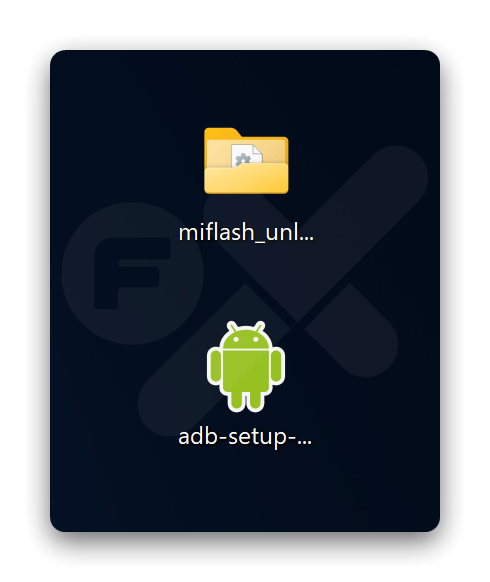
Download & extract:
Step 2
Double click ➜ adb-setup-1.4.3.exe
Then press the key ➜ Y
See the image below 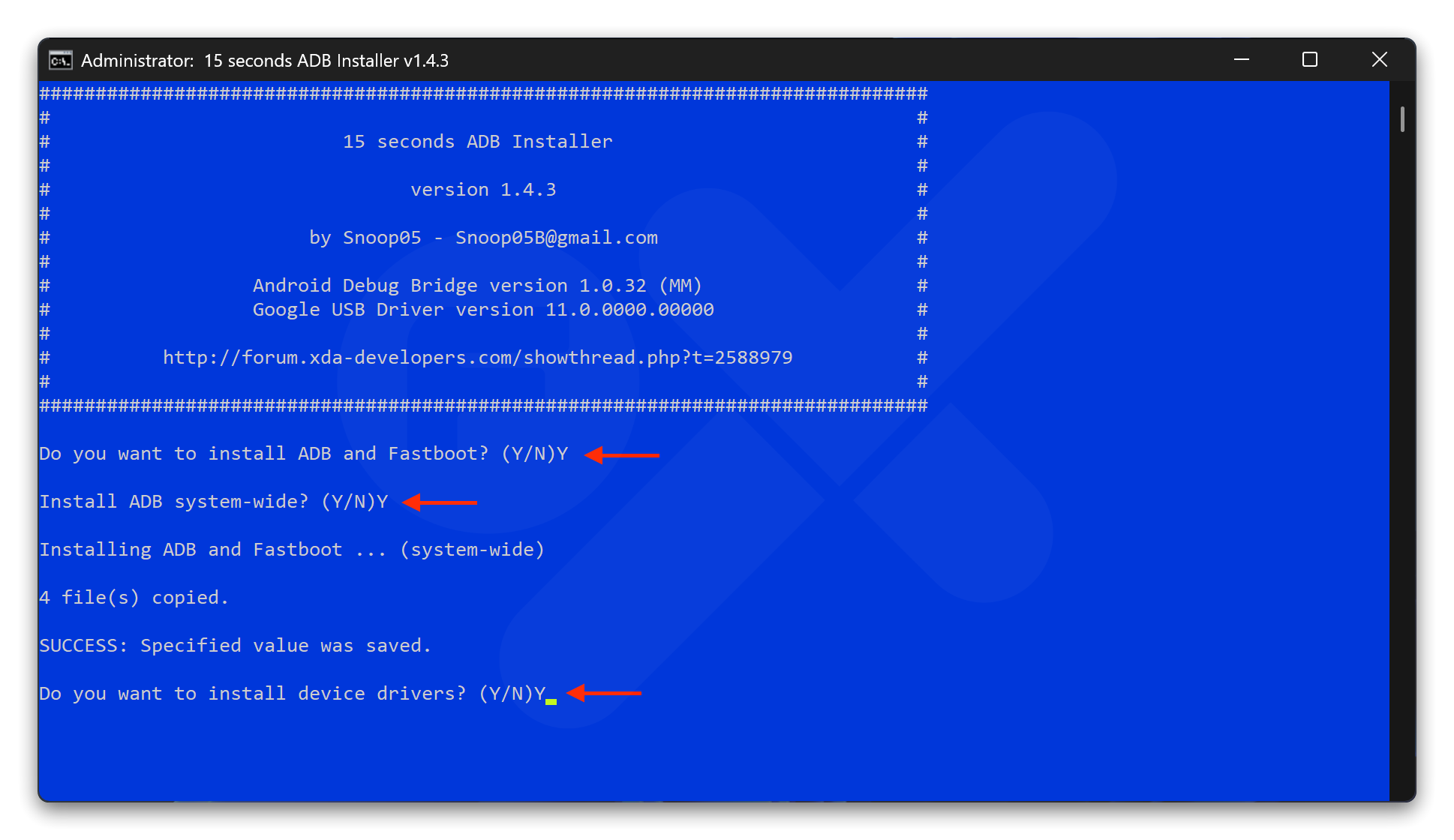
Step 3
Make sure ➜ ☑️ Always trust software from “Gooogle Inc” , Then click “Install” 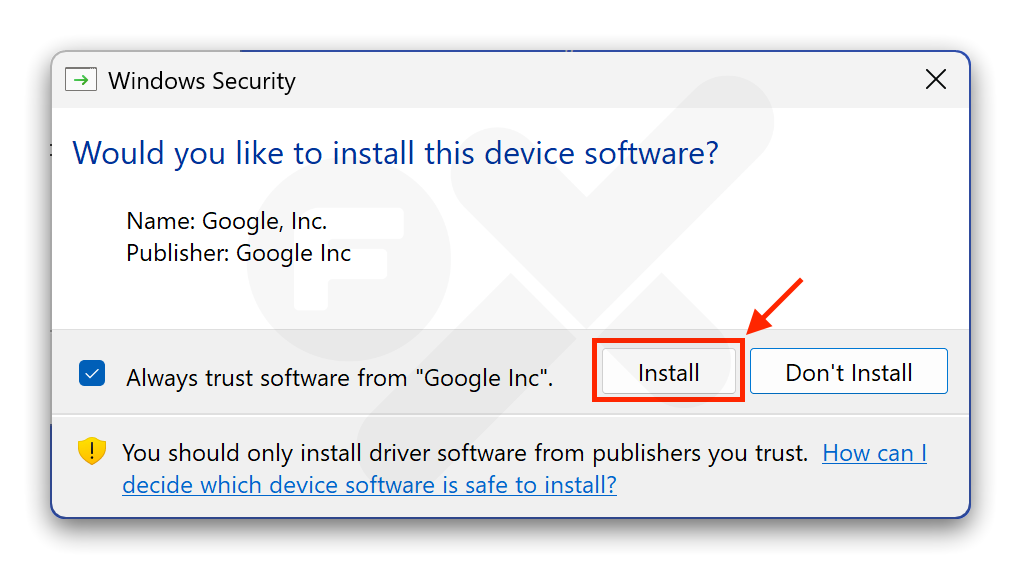
Step 4
Click ➜ Next 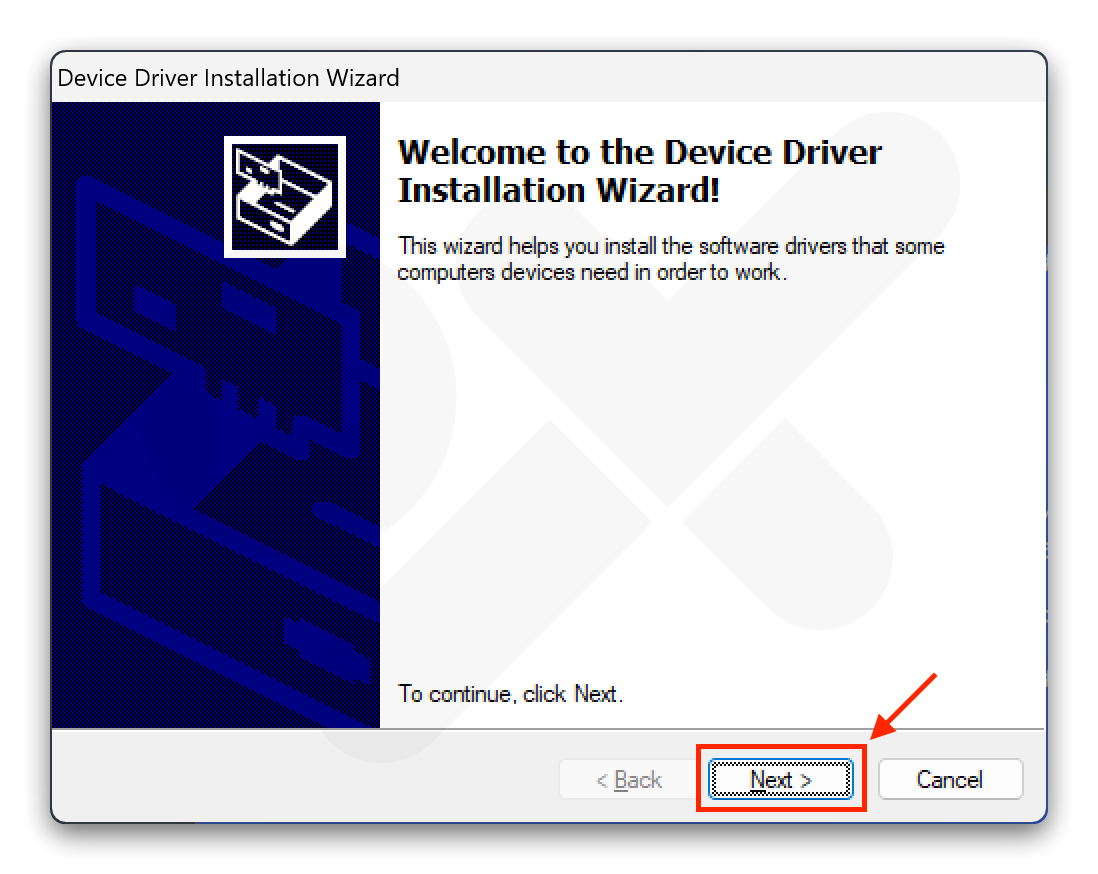
Step 5
The message “Ready to use” will appear. Click “Finish” 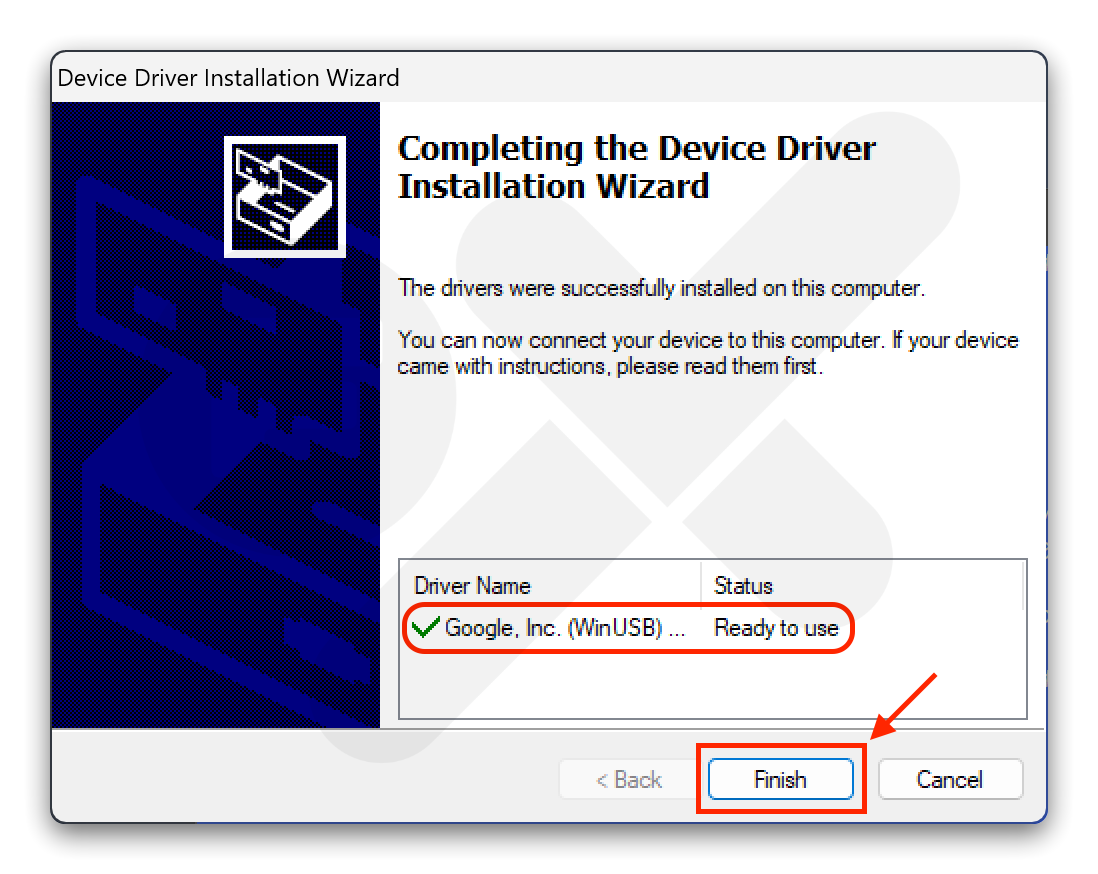
Step 6
Double click miflash_unlock.exe 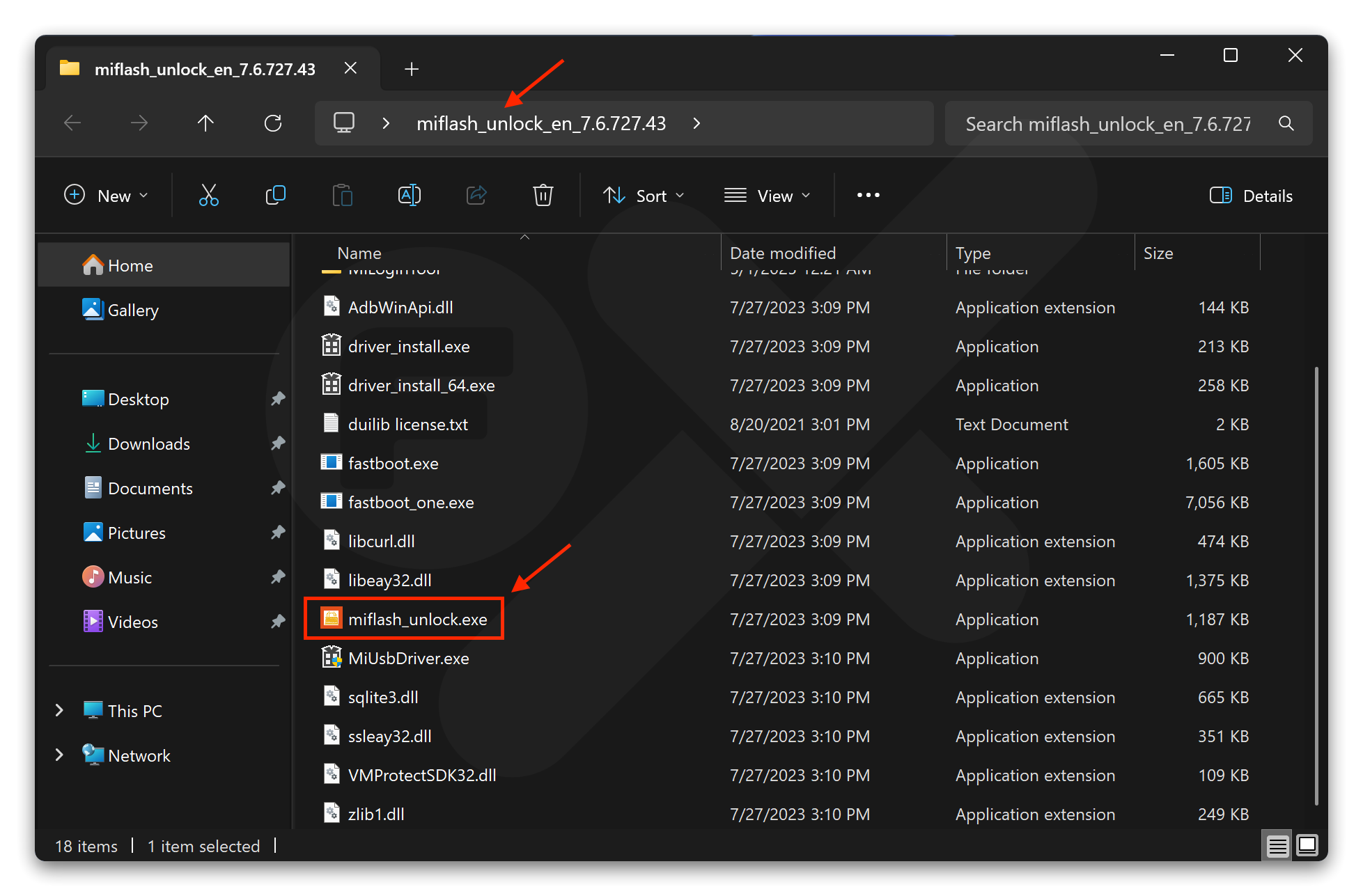
Step 7
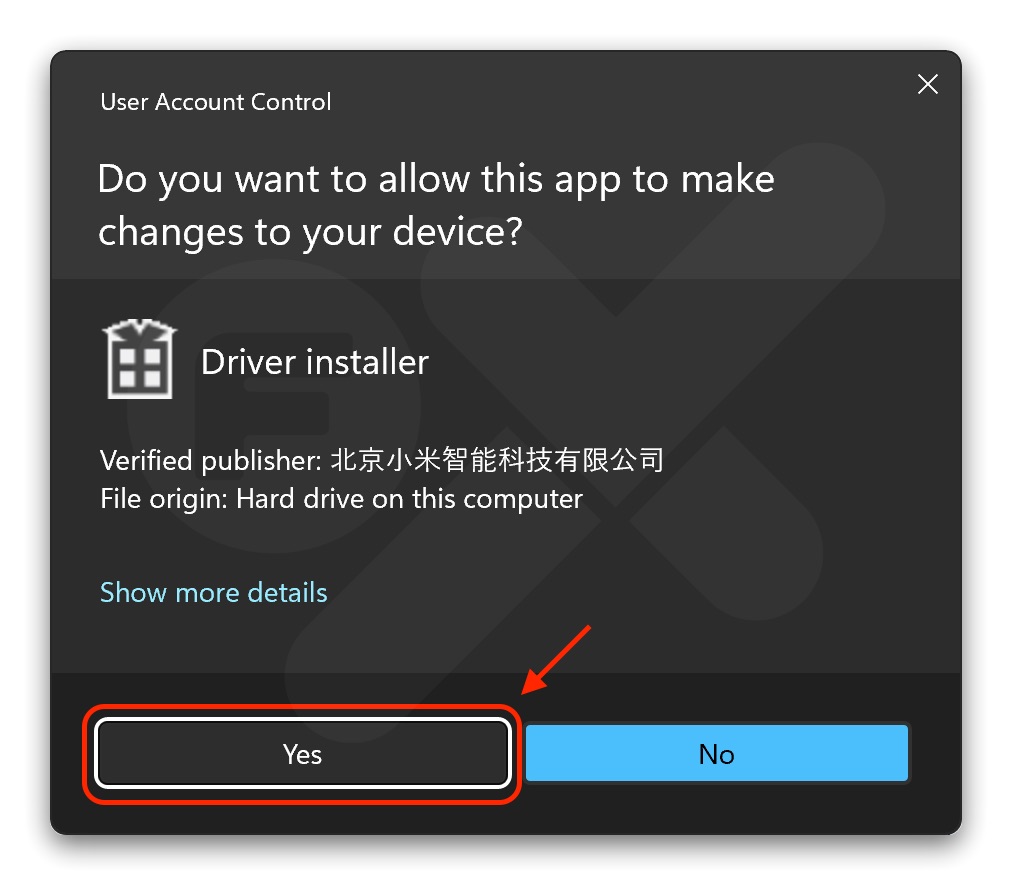
Step 8
Click the “Gear” icon (see the red circle) 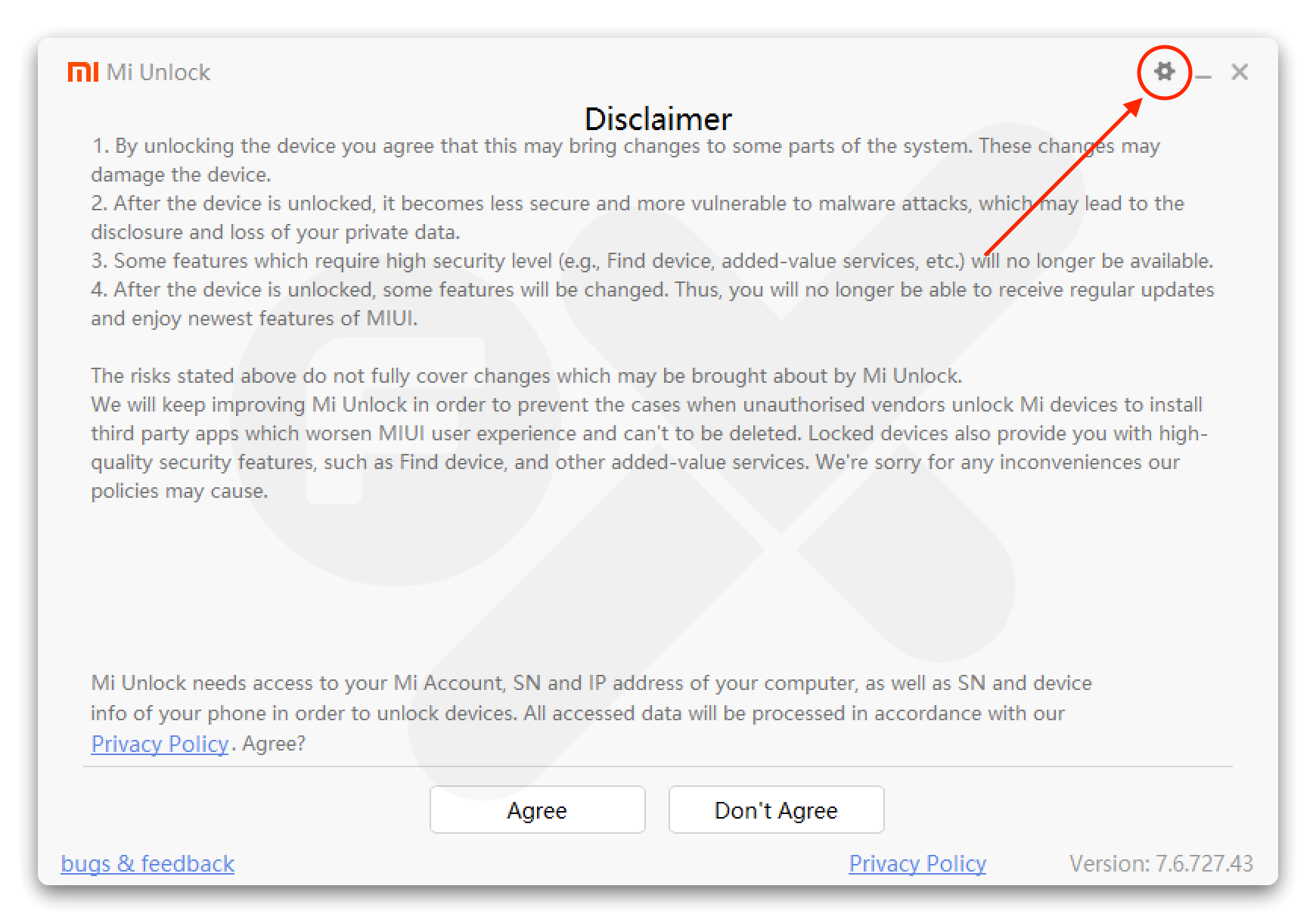
Step 9
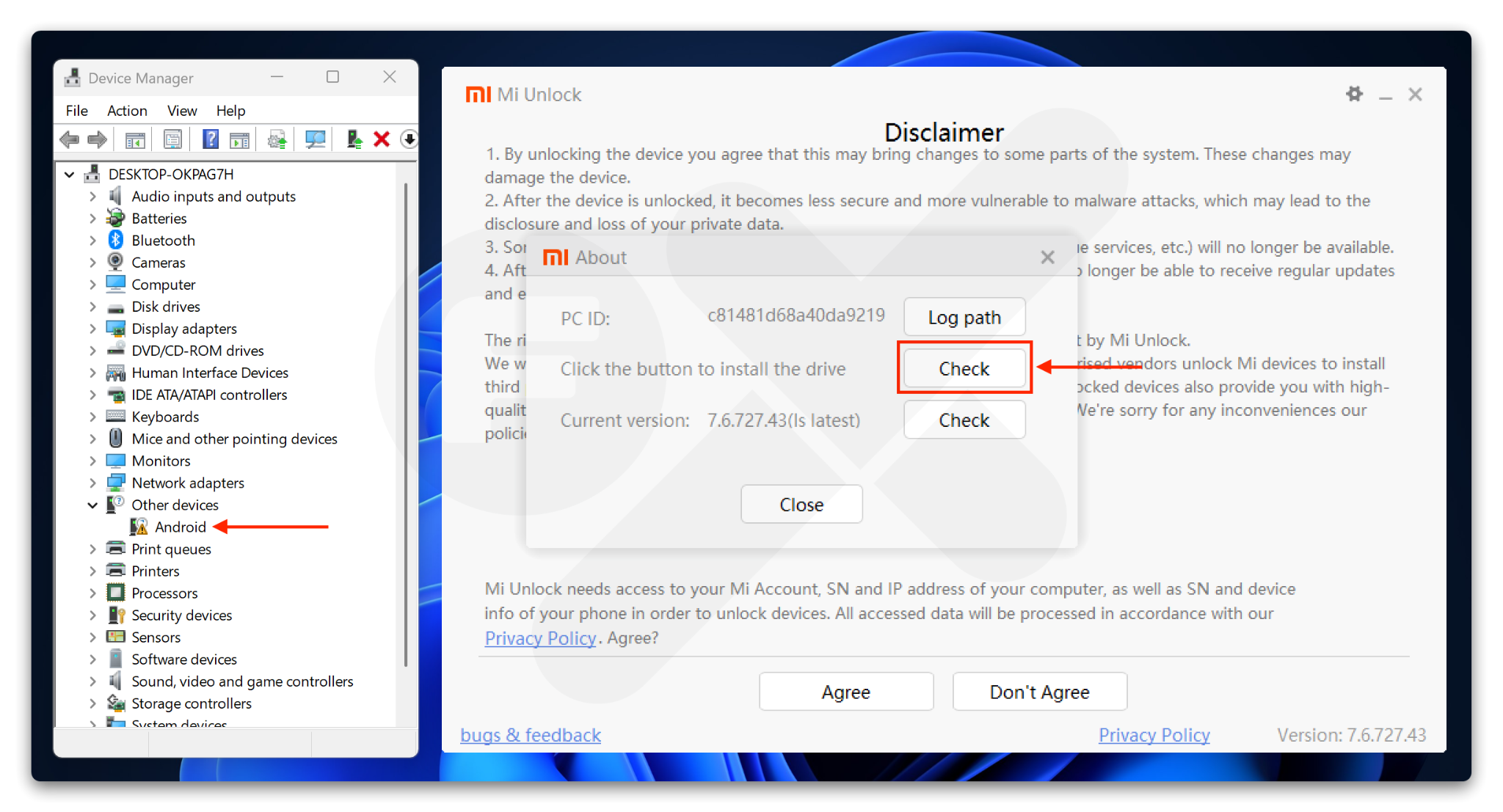
- Open Device Manager (Click the Start button (Windows logo) ➜ Type Device Manager in the search bar ➜ Click on the Device Manager result)
- Connect your device to the computer via USB cable
- If Device Manager shows
⚠︎ Androidit means the fastboot driver has not been installed correctly - Click ➜ Check “Click the button to install drive”
Step 10
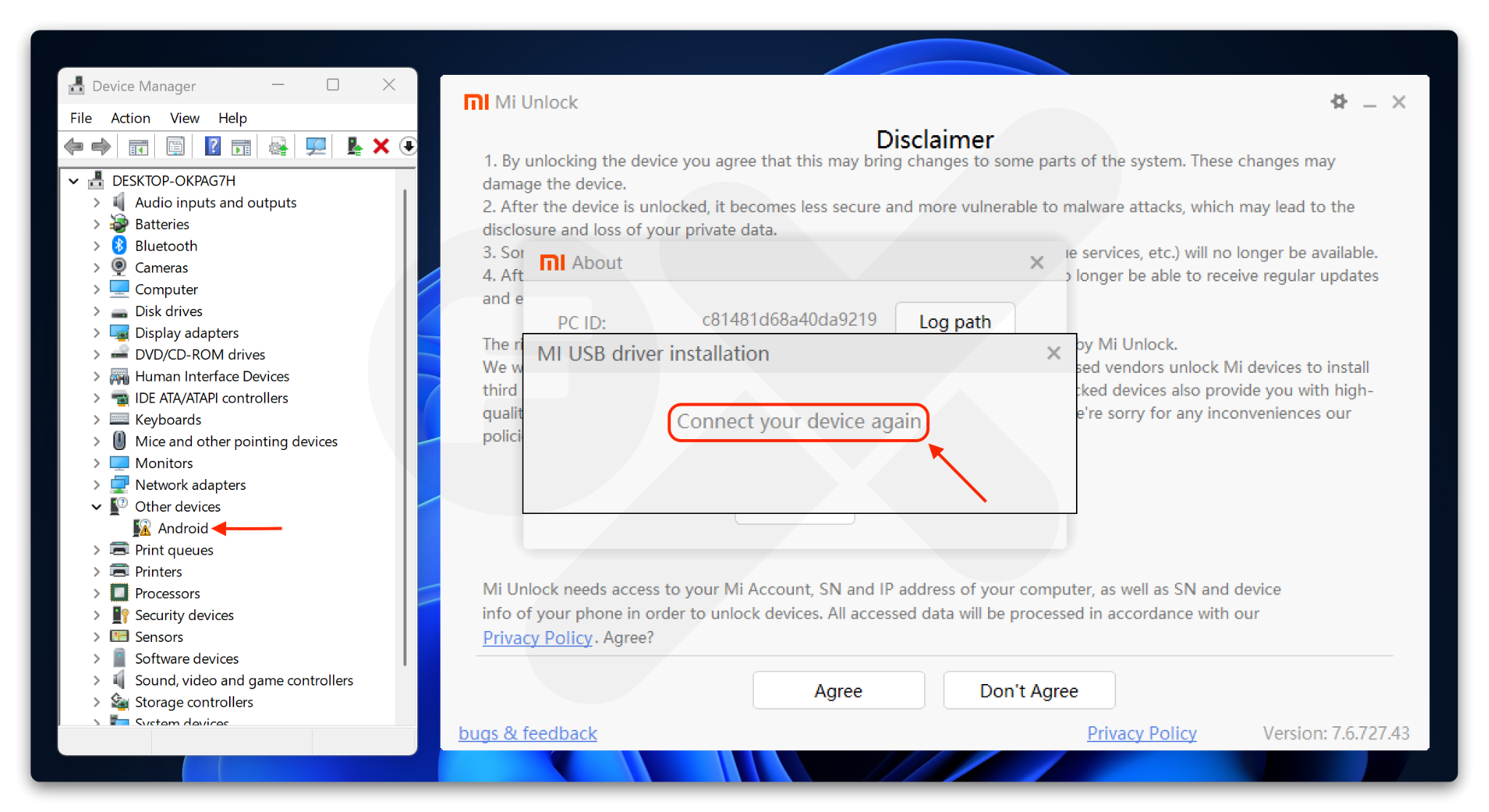
- If it says “Connect your device again”, unplug the USB and reconnect your device to the computer
- The driver should then install automatically
Step 11
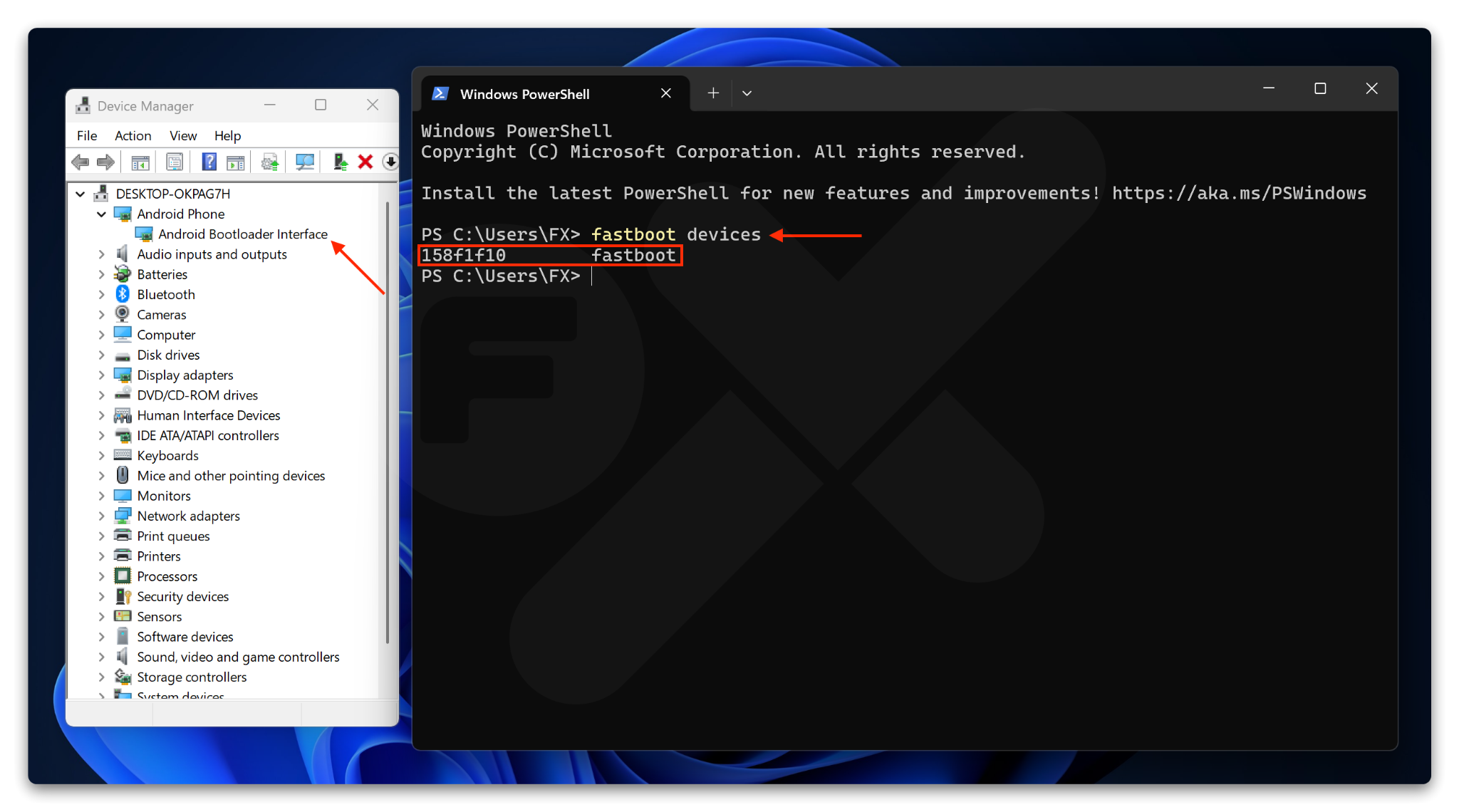
If the installation is successful, the display will look like the image below.
Then Close Mi Unlock. 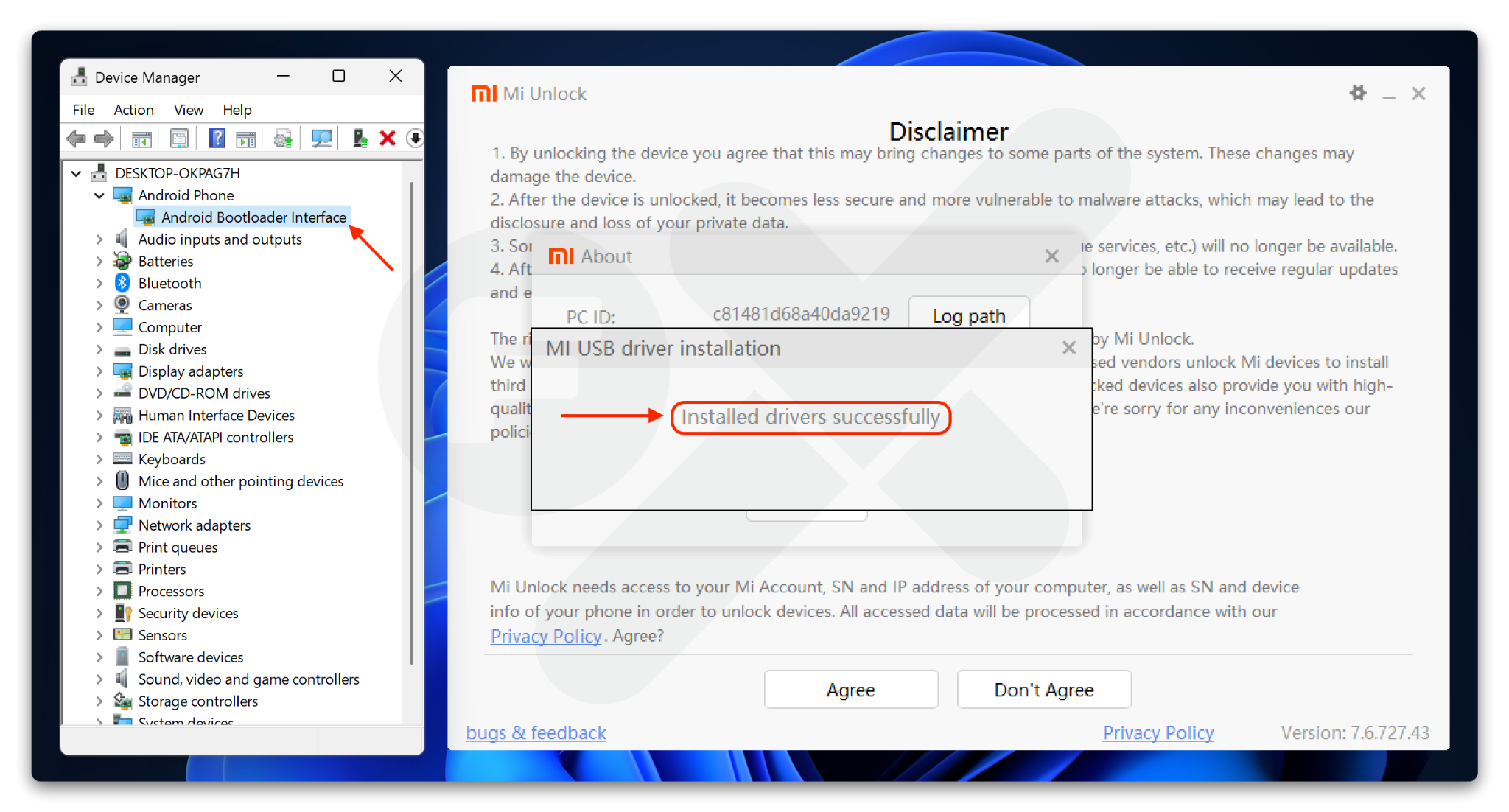
Step 12
- Open Terminal / CMD
- Type the command:
fastboot devices
If the result looks like this, you’re done 🎉.